
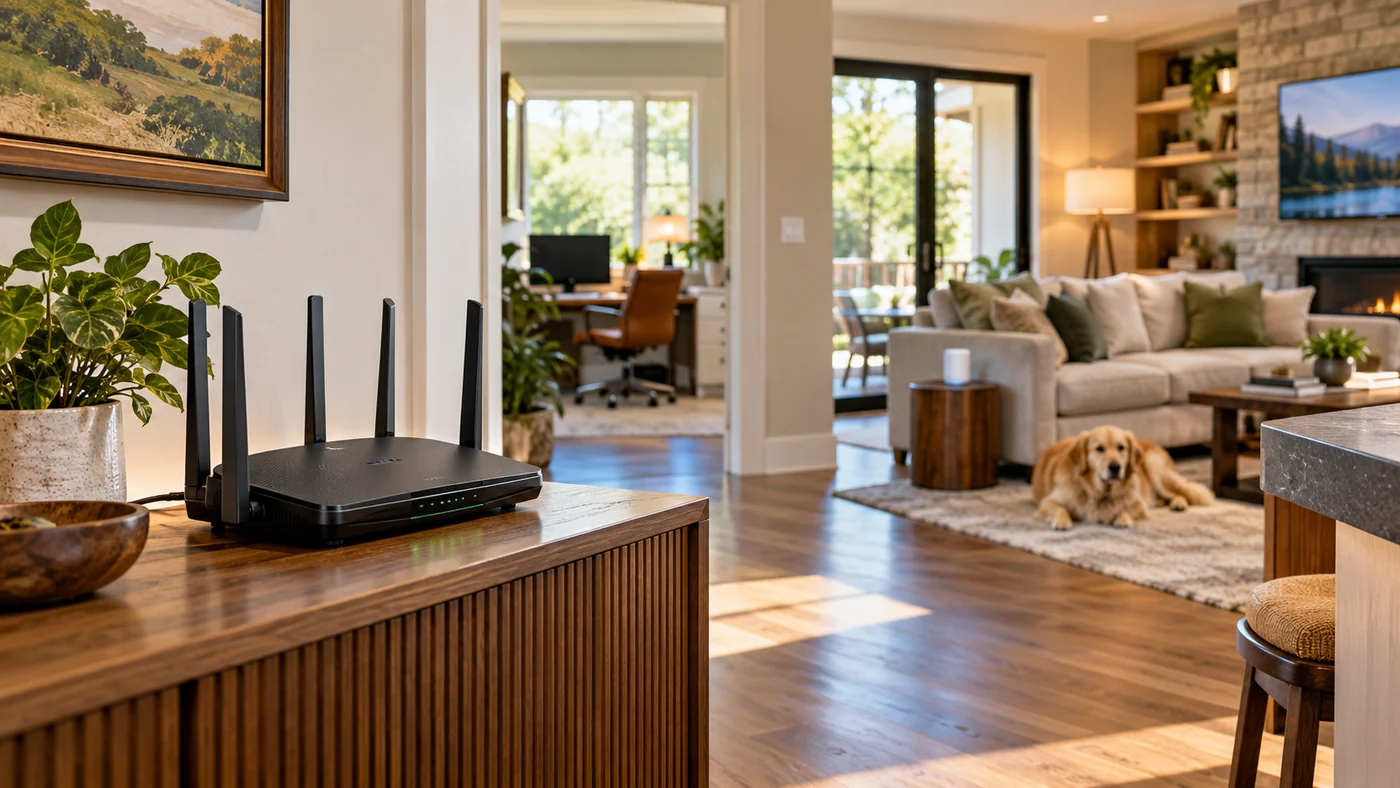
Buying a router should be easier than it is. You know roughly what you want: reliable Wi-Fi in the rooms where people actually use it, decent speed, no mysterious dropouts, and an app that does not make you feel like you have accidentally started managing a small data center.
Then you start shopping. One box says AX3000. Another says BE9300. There are dual-band routers, tri-band routers, mesh systems, 2.5-gig ports, 10-gig ports, Wi-Fi 6E, Wi-Fi 7 and enough antennas to make some models look vaguely insect-like. It is easy to spend too much simply because the expensive model sounds safer.
The better way to choose is to start with the house. How big is it? Where does the internet line enter? What are the walls made of? How many people are streaming, gaming or working at the same time? Are you paying for 300 Mbps internet or 2 gigabit fiber? Those answers narrow the field faster than any spec sheet.
First, Make Sure You Actually Need a Router
This sounds obvious, but it catches people all the time. Many cable and fiber companies provide a gateway that combines the modem or fiber connection with a Wi-Fi router in one box. If that equipment is working well, replacing it may not solve anything.
On the other hand, provider-supplied equipment is often placed wherever the service enters the house rather than where Wi-Fi coverage would be best. A gateway tucked into a metal utility cabinet, laundry room or far corner can make an otherwise decent internet connection feel disappointing.
| Device | What it does | Do you need one? |
|---|---|---|
| Modem | Connects a cable internet service to your home network. | Yes for most cable service, unless it is built into a provider gateway. |
| ONT / fiber terminal | Terminates the fiber line at your home. | Usually supplied by the fiber provider. |
| Router | Creates and manages your home network and usually provides Wi-Fi. | Yes, but it may already be built into your provider equipment. |
| Mesh node | Extends the same Wi-Fi network to another part of the house. | Only if one router cannot cover the home well. |
The Question I Would Ask Before Looking at Any Model
Where is the weak spot?
If Wi-Fi is strong in the living room and terrible in one back bedroom, that is a coverage problem. If Wi-Fi looks full-strength but everything slows down when several people are online, that may be a capacity problem. If one wired desktop never gets close to the speed you pay for, the bottleneck may be the modem, router port, cable or computer itself.
That distinction matters because a $500 router placed in the same bad location can still disappoint. Moving a $150 router six feet out of a cabinet sometimes produces a more noticeable improvement than replacing it with something far more expensive.
Wi-Fi 6, Wi-Fi 6E or Wi-Fi 7?
For most shoppers, this is where the alphabet soup begins.
| Standard | What it adds | What it feels like in a real home |
|---|---|---|
| Wi-Fi 6 | Efficient handling of many devices on 2.4 and 5 GHz. | Still a very capable choice for normal broadband plans, streaming, smart-home gear and everyday laptops and phones. |
| Wi-Fi 6E | Adds the 6 GHz band. | Can reduce congestion for compatible devices, especially in homes with busy 5 GHz airspace. Older devices still connect on the older bands. |
| Wi-Fi 7 | Wider channels, Multi-Link Operation and higher potential throughput. | Most attractive when you have newer devices, multi-gig internet, heavy local networking or you are buying for several years rather than replacing again soon. |
Wi-Fi 7 is genuinely newer technology, but that does not make a Wi-Fi 6 router suddenly slow. An older phone does not become faster simply because the router supports features the phone cannot use. That is one of the easiest ways to overspend.
Where Wi-Fi 7 starts to feel more sensible is when the rest of the network can take advantage of it: newer laptops and phones, 2.5-gig or faster internet, a NAS, large local file transfers, or a house where several demanding devices are active at once.
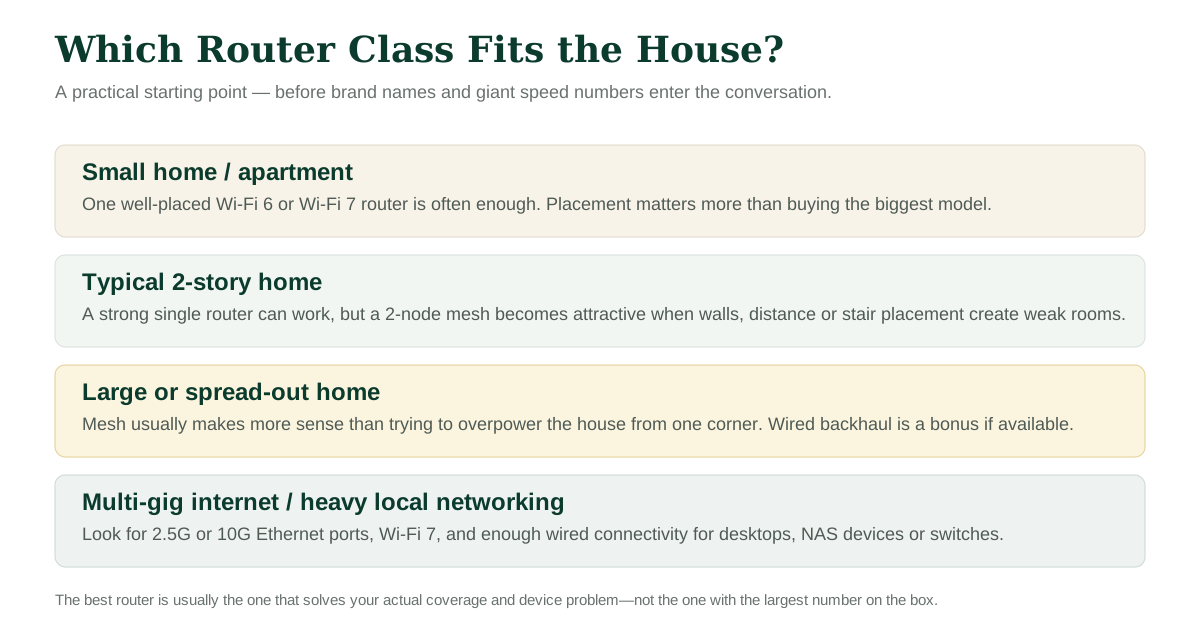
Single Router: Still the Cleanest Solution
If one router can cover the home, I prefer that simplicity. There is one box, one power adapter and one place to troubleshoot.
A centrally located single router can work beautifully in an apartment, condo, ranch-style home or moderate-size two-story house. The trick is placement. High and open usually beats low and hidden. Near the center of the house usually beats a far corner.
Putting a router behind a television, inside cabinetry or next to a pile of electronics is convenient aesthetically and often lousy for radio performance.
Mesh: Useful When the House Fights Back
Mesh systems make sense when the shape of the home is the problem. Long floor plans, multiple stories, additions, concrete or masonry walls and detached workspaces can all create dead areas that a single router struggles to reach.
The important point is that a mesh node still needs a good connection back to the main router. If you put the second node directly in the dead zone, it may simply repeat a weak connection. Placing it somewhere between the strong area and the weak area usually works better.
If the house already has Ethernet wiring, using wired backhaul between mesh nodes is about as good as it gets.
How Much Speed Does the Router Need to Handle?
A lot of router marketing uses the combined theoretical speed of every Wi-Fi band. That number can be useful for comparing product families, but it is not the speed one laptop will see.
| Your internet plan | Router features worth looking for | What is probably unnecessary |
|---|---|---|
| 100–500 Mbps | Good Wi-Fi 6 or newer, Gigabit Ethernet, strong coverage. | 10-gig ports and flagship Wi-Fi 7 hardware purely for internet speed. |
| 500 Mbps–1 Gbps | Wi-Fi 6, 6E or 7; Gigabit or 2.5G WAN; capable processor. | Extreme multi-gig hardware unless you have another reason for it. |
| 1–2.5 Gbps | 2.5G WAN, preferably one or more 2.5G LAN ports; Wi-Fi 7 starts to make practical sense. | Paying for a router whose wired ports are all limited to 1 Gbps. |
| 5–10 Gbps | Multi-gig WAN/LAN, fast clients, Wi-Fi 7, possibly 10G Ethernet. | Assuming every phone or laptop will actually receive the full service speed over Wi-Fi. |
Ports Matter More Than They Used To
For years, four ordinary Gigabit Ethernet ports were plenty. That is changing.
If you have gigabit-plus fiber, a desktop workstation, network-attached storage, a home server or a fast wired switch, 2.5-gig ports are worth noticing. A router with a 2.5G internet port but only 1G LAN ports can still be perfectly fine for Wi-Fi, but it limits any single wired device to roughly gigabit-class networking.
Some newer routers go much further. The ASUS RT-BE88U, for example, leans heavily into wired networking with 10G and multiple 2.5G ports. The TP-Link Archer BE550 provides five 2.5G ports. Those features are useful when there is something in the house that can actually use them.
Four Current Router Styles Worth Understanding
This is not a ranking. These are useful examples because they represent four different ways manufacturers approach a home network.
| Example | Type | Why someone might look at it | Watch for |
|---|---|---|---|
| TP-Link Archer BE550 | Tri-band Wi-Fi 7 single router | Strong multi-gig wired connectivity, 6 GHz support and EasyMesh compatibility. | Buying this class of router makes more sense if you have newer clients or faster-than-gigabit networking. |
| NETGEAR Nighthawk RS300 | Tri-band Wi-Fi 7 single router | Up to 2,500 sq. ft. claimed coverage, 2.5G connectivity and support for a busy device count. | Coverage claims are best treated as a comparison tool; walls and layout can change the real result. |
| ASUS RT-BE88U | Wi-Fi 7 router with unusually strong wired networking | Interesting for a workshop, office or power-user setup with several wired devices, multi-gig service or a fast local network. | It is more hardware than a typical household needs if everything is wireless and the internet plan is modest. |
| eero Max 7 | Tri-band Wi-Fi 7 mesh platform | Simple app-driven setup, mesh expansion and multi-gig wired ports. One unit is rated for up to 2,500 sq. ft. | Premium mesh hardware can get expensive quickly when you need two or three nodes. |
| Google Nest Wifi Pro | Wi-Fi 6E mesh | Simple management, 6 GHz support and up to 2,200 sq. ft. claimed coverage per router. | Its Ethernet ports are 1 Gbps, so it is not aimed at multi-gig wired households. |
What About Gaming Routers?
Some gaming routers are excellent routers. What I would not assume is that the word “gaming” automatically means lower ping.
Good traffic management, fast hardware and strong wired ports can help a busy network. But the distance to the game server, the internet provider and the quality of the connection leaving your house still matter. If the gaming PC can be wired with Ethernet, that often has a more predictable effect than buying a router with aggressive styling and eight antennas.
Do More Antennas Mean Better Wi-Fi?
Not automatically. Antennas are part of the story, but radio design, placement, channel use, client devices and the building itself matter too.
Some very capable routers hide their antennas internally. Others display a small forest of them. I would not use antenna count as a buying shortcut.
The Router Is Only Half of the Wi-Fi Conversation
One of the most believable things about home networking is how often a “router problem” turns out to be something else.
A laptop may have an older Wi-Fi adapter. A television may be connected to 2.4 GHz from the far end of the house. A desktop may be using a damaged Ethernet cable. A smart-home device may dislike band steering. A provider gateway may still be broadcasting its own Wi-Fi beside the new router.
That last one is especially common. When you add your own router behind an existing provider gateway, it is worth checking whether the gateway should be placed in bridge or passthrough mode. Otherwise you can wind up with two routers trying to manage the same connection, which can create what is called double NAT. It is not always catastrophic, but it can complicate gaming, port forwarding and some remote-access setups.
Placement Usually Beats Brute Force
If I could change one habit in home Wi-Fi, it would be putting the router where it can actually breathe.
Routers do not particularly enjoy being hidden in a cabinet beside a cable box, game console, power strip and television. They also do not love metal enclosures, concrete walls or being placed at floor level in one corner of the house.
A reasonably central shelf, console or wall location with open space around it is usually better. If the modem connection enters at a bad spot, running one Ethernet cable to a better router location can be surprisingly worthwhile.
How Many Mesh Nodes Do You Really Need?
Mesh systems are easy to oversize. More nodes do not automatically mean faster Wi-Fi. Too many can create extra wireless chatter and make placement harder.
| Home layout | Reasonable starting point |
|---|---|
| Apartment / small single-story home | Try one router first. |
| Moderate two-story home | One strong router or a two-node mesh, depending on router location and wall construction. |
| Large two-story / long ranch | Two or three mesh nodes may make sense. |
| Detached garage / workshop | Consider Ethernet, fiber between buildings, point-to-point wireless or an outdoor-rated mesh solution rather than simply adding another indoor node. |
Features I Would Actually Pay Attention To
- 2.5G Ethernet: increasingly useful even if your internet is only 1 Gbps today.
- Automatic firmware updates: networking gear is not something most people remember to maintain manually.
- Guest network: convenient for visitors and sometimes useful for separating less-trusted devices.
- Good app and web controls: especially if you want to see connected devices, pause access or troubleshoot without a manual.
- Mesh expansion: useful if you are unsure whether one router will cover the house.
- WPA3 support: current security support is worth having, even though older devices may still connect using older modes.
- Enough wired ports: count your desktop, television, game console, printer, NAS and switch before assuming two ports are enough.
Features That Sound More Important Than They Usually Are
- Huge combined speed numbers: they are not the speed one device will receive.
- “Gaming” branding: useful features may be present, but the label itself is not a performance guarantee.
- Maximum device counts: most homes will run out of meaningful bandwidth or radio airtime long before they literally hit a three-digit device limit.
- Extreme coverage claims: helpful for rough comparison, but a square-foot number cannot know where your brick fireplace, tile shower or concrete wall is located.
A Practical Way to Narrow the Choice
| If this sounds like your home... | Start by looking at... |
|---|---|
| Internet under 500 Mbps, modest home, normal streaming and browsing | A good Wi-Fi 6 router. There is no need to apologize for not buying Wi-Fi 7. |
| Gigabit service, newer phones/laptops, lots of connected devices | Upper-tier Wi-Fi 6E or a reasonably priced Wi-Fi 7 router. |
| 2-gig or faster fiber | Wi-Fi 7 plus 2.5G or faster WAN/LAN ports. |
| Large home with dead zones | A mesh platform rather than one oversized router in a bad location. |
| Home office / workshop with NAS, servers or fast wired PCs | A router with multiple 2.5G ports, possibly 10G if the rest of the network supports it. |
| You just want it to work and rarely touch settings | An app-driven mesh system with automatic updates and straightforward device management. |
The Part That Matters Most
Buy for the problem you actually have. Coverage problems need better placement or more access points. Multi-gig service needs faster ports. A crowded household needs capacity. A small apartment may need none of that.
Before You Order
- Check your internet plan speed.
- Check whether you already have a modem/router gateway.
- Count wired devices.
- Measure where Wi-Fi is weak.
- Decide whether one router can sit centrally.
- Look at the Wi-Fi capability of your newest devices.
- Think about whether you may add mesh later.
Related Home Improvement Guides
Research Sources & Methodology
This guide uses manufacturer specifications to explain the capabilities of current router classes and representative models. Coverage and throughput claims are useful for comparison but should not be treated as guaranteed performance in a particular home.
- TP-Link Archer BE550 — Wi-Fi 7 features, 6 GHz support and 2.5G ports
- NETGEAR Nighthawk RS300 — Wi-Fi 7, device and coverage specifications
- ASUS RT-BE88U — Wi-Fi 7 and multi-gig wired connectivity
- eero Max 7 — mesh coverage, Wi-Fi 7 and Ethernet specifications
- Google Nest Wifi Pro — Wi-Fi 6E, mesh coverage and Ethernet specifications